My Reports - Report Format 1
Use the Ceridian Data as a Service (DaaS) My Reports service to:
- Search for a specific report.
- Review information in a report.
- Export or save a report to a local or network drive in any of the following formats:
- Adobe® Portable Document Format (PDF)
- Comma-separated values (CSV)
- Microsoft® Excel®
- Microsoft® PowerPoint®
IMPORTANT
DaaS is in the process of migrating all reports to a new format. The migration is occurring over the next several product releases. All of the Ceridian Payroll Standard Reports and Powerpay Standard Reports have migrated to the new format. Also, several of the Client Custom reports and Starter reports have migrated to the new format.
The information in this topic is for the
 Report features
| Feature | Description | ||||||||||||||||||||||
|---|---|---|---|---|---|---|---|---|---|---|---|---|---|---|---|---|---|---|---|---|---|---|---|
| Report Parameters | Use report parameters to search for and include specific information in a report. For a list of report parameters for each report, see Standard Report Parameters.
When you generate a report, for faster results:
|
||||||||||||||||||||||
| Excel Tabs | Use this feature to export report information to different tabs in an Excel workbook. For example, if To use this report feature, in the Excel Tabs field, select Yes. |
||||||||||||||||||||||
| Show Links |
When a report contains child reports, use this feature to control whether hyperlinks appear on the report that enable you to access the child reports.
For more information, see About parent and child reports. Note: The Show Links feature is not available on all reports. |
||||||||||||||||||||||
| Report tool bar |
Use the Report tool bar to navigate within the report and to download the report.
|
 at the top of the report.
  at the top of the report.
  .
. .
. .
. .
. , enter the text you want to search for and click
  .
. .About parent and child reports
A parent report is a report that includes links to sub-reports (referred to in the DaaS Help as child reports). These reports contain additional detailed information about the parent report. If the report you select on the My Reports page has one or more child reports, the Show Links option appears with the other Search Criteria fields for the report. If you indicate you want the parent report to include hyperlinks to the child reports, when the report opens, the child report names appear as hyperlinks beneath the heading of the parent report.
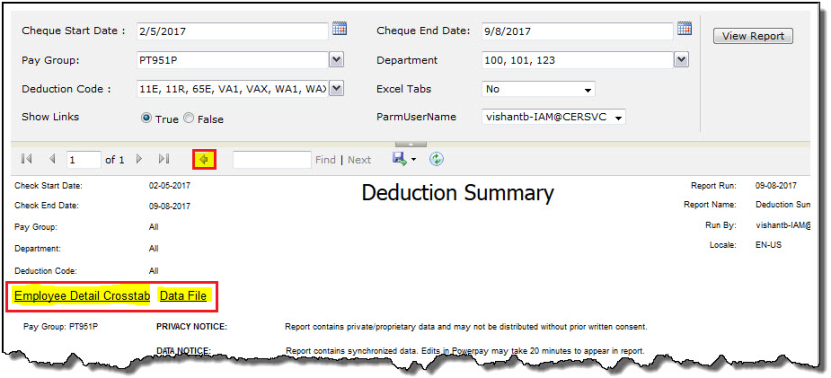
To view a child report, click the associated hyperlink. After viewing the child report, to return to the parent report, click the Go back to the parent report icon ( ) in the tool bar.
Caution: Never use the Back button to return to the parent report. Instead, always use in the tool bar.
Exporting parent and child reports
Because DaaS stores the child reports on the server and not within the report, if you export a parent report to Excel, the hyperlinks to the child reports won't work on the exported report. Instead, export the parent report, and then export each child report individually.
| To export ... | In the report selection criteria fields, click ... | When the parent report opens ... |
|---|---|---|
| A parent report | False in the Show Links field | The child report hyperlinks don't appear on the report. |
| One or more child reports | True in the Show Links field |
The child report hyperlinks appear on the report. Note: Export each child report individually. |
For detailed instructions, see To export a parent report without including child report hyperlinks and To export a child report.
To change the display of information
- To sort the reports that appear on the My Reports page, click the sort indicator (
 ) in a column heading. Each time you click the column heading, the sort order reverses.
 - To see additional results, on the bottom of the page, click one of the following:
- Previous
- Next
- A page number (if applicable).
Note: You can select to display reports in groups of 10, 25, 50, or 100. By default, reports appear in groups of 10.
To search for information on this page
To search for specific information on the My Reports page, enter one or more characters in the Search field at the top of the page. DaaS displays all reports that contain your search criteria in the report name or in the report description. For example, if you enter Deduction, all reports with a report name or report description that contains the word Deduction appear.
To access and open reports
You can access and open reports from three different locations in DaaS.
Accessing reports from the Home page
The Home page provides two hyperlinks that you can use to access reports:
- My Reports
- Recent Reports
| On the Home page, click ... | Then ... | To access a report ... |
|---|---|---|

|
The My Reports service opens and displays folders that contain reports separated by category (public reports and client custom reports) that are available to the client. |
|
|
|
A list of up to ten reports that you most recently accessed appears. For each report, the list includes:
|
Click the Link icon ( ) associated with the report you want to open. ) associated with the report you want to open. |

Accessing reports from the Navigation panel
The navigation area, located in the upper left corner of any page, contains the navigation panel icon ( ).
).
When you click the navigation panel icon, DaaS
To search for and review a report, do this:
- On any page, in the navigation area, click
 .
. -
On the navigation panel that appears, click Reports > My Reports.
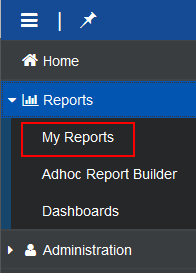
The My Reports service opens and displays folders that contain reports separated by category (public reports and client custom reports) available to the client.
- Click the folder for the category of reports you want to access.
- When the folder expands, click the standard reports subfolder or client custom reports subfolder that contains the reports you want to access.
DaaS displays a list of all reports in the selected category in the right pane of the page.
- Click the report name or description of the report that you want to open.
Accessing reports using the Global Search icon
Located in the upper right corner of any page, the tool bar contains the Global Search icon ( ).
).
The Global Search icon ( ) allows you to search for one or more specific reports.
To search for and review a report, do this:
- On any page, on the tool bar, click
 .
. The Search field appears:
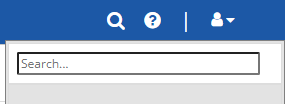
- In the Search field, enter one or more characters of a report name.
Tip: You may enter either the entire report name or a partial report name in the Search field. The search results display all reports that include your search criteria. For example, if you enter Deduction, the results include all reports that begin with or contain the word Deduction.
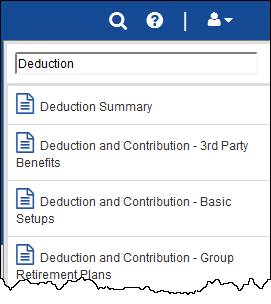
- In the search results, click the report you want to review.
Tasks
To run a report
- To open the report, use one of the methods described in the To access and open reports section.
Note: If you are running a standard report, depending on the report, one or more parameters are available to help you narrow your search results for specific information. For a list of all standard report parameters, see Standard Report Parameters.
- Select the pay group you want to view information for.
Based on your selection, additional options and fields may appear.
- If you plan to export the report data to Microsoft® Excel®, and you want data separated on separate tabs, in Excel Tabs select Yes. For example, the selected pay group uses more than one deduction code, if you select this option, information for each deduction code appears on an individual tab.
By default, No is selected.
- Select or enter information in all other fields as needed.
- If the report contains child reports, to:
- Provide hyperlinks to the child reports, in Show Links, click True.
- Hide the hyperlinks to the child reports, in Show Links, click False.
By default, True is selected.
Note: This option is available only for reports that contain child reports.
- Click View Report.
Tip: The View Report button is located on the far right side of the page. Depending on your monitor's resolution setting, you may need to scroll to display the button.
To export or save a report in a different format
Use this procedure to export or save a report to your computer in a different format, such as Excel or PDF.
Warning: If pop-up blockers are turned on, the export will fail. If this happens, turn off pop-up blockers. Then, open and export the report again.
- To open the report, use one of the methods described in the To access and open reports section.
- Enter and select information as needed and click View Report.
Tip: The View Report button is located on the far right side of the page. Depending on your monitor's resolution setting, you may need to scroll to display the button.
- When the report appears, in the report tool bar, click the Export Options icon (
 )
) - From the list that appears, select one of the following formats:
- Excel
- Powerpoint
- CSV (comma delimited)
Note: Excel is the recommended format for exporting reports. If you export your reports in Excel format, you can manipulate the exported data as needed.
-
The browser you are using determines the next step in the procedure.
Next step for this procedure in common browsers If you use ... This occurs ... Google® Chrome® DaaS saves the report to the Download folder on your computer. Your browser settings determine if the report automatically opens or if you open the report from the Downloads folder. Microsoft® Edge® The report is saved to the Downloads folder on your computer, and appears in the Download list in the tool bar at the top of the page. If the download list doesn't automatically appear, click  .
.To open the image, click Open file.
Mozilla® Firefox® A window appears. Do this:
-
Click one of the following options:
- Open with to open the report before you save it to your computer.
Note: Click the drop-down arrow to select the program you want to use to open the report.
- Save File to save the report directly to your computer without opening it.
DaaS saves the report to the Downloads folder on your computer.
- If you want DaaS to use the same option (Open or Save) that you selected for this image on all other reports you export, select Do this automatically for files like this from now on.
- Click OK.
Note: After you export or save the report, you can print it.
-
To export a parent report without including child report hyperlinks
Note: Ceridian recommends that you export parent reports and child reports separately. If you also want to export the child reports, see To export a child report.
- To open the report, use one of the methods described in the To access and open reports section.
- Enter and select information as needed.
- In Show Links, click False.
- Click View Report.
Tip: The View Report button is located on the far right side of the page. Depending on your monitor's resolution setting, you may need to scroll to display the button.
-
When the report appears, in the report tool bar, click the Export Options icon (
 ).
). -
Select Excel.
-
The browser you are using determines the next step in this procedure.
Next step for this procedure in common browsers If you use ... This occurs ... Google® Chrome® DaaS saves the report to the Download folder on your computer. Your browser settings determine if the report automatically opens or if you open the report from the Downloads folder. Microsoft® Edge® The report is saved to the Downloads folder on your computer, and appears in the Download list in the tool bar at the top of the page. If the download list doesn't automatically appear, click .To open the image, click Open file.
Mozilla® Firefox® A window appears. Do this:
-
Click one of the following options:
- Open with to open the report before you save it to your computer.
Note: Click the drop-down arrow to select the program you want to use to open the report.
- Save File to save the report directly to your computer without opening it.
DaaS saves the report to the Downloads folder on your computer.
- If you want DaaS to use the same option (Open or Save) that you selected for this image on all other reports you export, select Do this automatically for files like this from now on.
- Click OK.
-
To export a child report
Note: Ceridian recommends that you export parent reports and child reports separately. DaaS allows you to export one child report at a time.
-
To open the report, use one of the methods described in the To access and open reports section.
-
Enter and select information as needed.
-
In Show Links, click True.
-
Click View Report.
Tip: The View Report button is located on the far right side of the page. Depending on your monitor's resolution setting, you may need to scroll to display the button.
-
When the report appears, click the hyperlink for the child report you want to export.
-
In the report tool bar, click the Export Options icon (
). -
Select Excel.
-
The browser you are using determines the next step in this procedure.
Next step for this procedure in common browsers If you use ... This occurs ... Google® Chrome® DaaS saves the report to the Download folder on your computer. Your browser settings determine if the report automatically opens or if you open the report from the Downloads folder. Microsoft® Edge® The report is saved to the Downloads folder on your computer, and appears in the Download list in the tool bar at the top of the page. If the download list doesn't automatically appear, click .To open the image, click Open file.
Mozilla® Firefox® A window appears. Do this:
-
Click one of the following options:
- Open with to open the report before you save it to your computer.
Note: Click the drop-down arrow to select the program you want to use to open the report.
- Save File to save the report directly to your computer without opening it.
DaaS saves the report to the Downloads folder on your computer.
- If you want DaaS to use the same option (Open or Save) that you selected for this image on all other reports you export, select Do this automatically for files like this from now on.
- Click OK.
-